


Galaxy S4’s LTE & Black Edition variant was yet to receive the Android 5.0 Lollipop update and just yesterday Samsung surprised the use...
Galaxy S4’s LTE & Black Edition variant was yet to receive the Android 5.0 Lollipop update and just yesterday Samsung surprised the users by rolling out the update. The update carries the version number 5.0.1. There are UI enhancements, Samsung has revamped the TouchWiz UI according to the new Material Design introduced by Google. Applications have been updated to work with this UI properly. New notifications on the lock screen have arrived in this update as well. Core enhancements includes performance and battery life improvement. Android 5.0.1 Lollipop is the biggest update for Samsung’s Galaxy series as it includes the major changes with the TouchWiz UI.

As off now, this update is on a slow roll out to the users in United Kingdom & Baltic and it will take quite a while to hit other regions. If you’re one of the users who can’t wait to get their hands on the most cool Android firmware immediately, you may want to update your device right away using some other method. We’ve already done the job for you and listed a method to help you to get your hands on this latest and greatest version of Android. As you move ahead, you’re going to come across a comprehensive guide that will help you to update your Galaxy S4 I9505 Black Edition to Android 5.0.1 Lollipop using Samsung’s flashtool Odin3.
Firmware details:
- Device Model: Galaxy S4 I9505 Black Edition
- Android Version: Android 5.0.1 Lollipop
- Build Number: I9505XXUHOB7
- Build Date: 19.12.2014
Early Preparations
1. This guide is only for Galaxy S4 I9505 Black Edition.
Make sure that your device is exactly as mentioned above. To check out what device you have, go to Settings > More/General > About Device or Settings > About Device and match the model number. Be careful about the device model number, flashing a file on a device not listed here might result in bricking it up. In that case, we may not be held responsible.
2. Battery should be charged at least 60%!
Your device’s battery should not be weak. In case your device goes dead during the flashing process, your device may get soft bricked and you might be in need of flashing stock firmware and that will ultimately result in wiping up your data as well. So, make sure that you charge your device before you start the flashing process.
3. Use the OEM data cable to establish connection!
Always use the original data cable to establish connection between your Android device and your computer / laptop. Using ordinary data cables might interrupt the flashing process, so to avoid any mishap, you need to meet this requirement as well.
4. Backup everything!
Just to be on the safe side, you may consider backing up each and everything from your Android device. This is highly recommended so that in case anything goes wrong, you still have the access to all of your data and you can restore it immediately. Also, clean install is always recommended, that means you will probably have to wipe your device to install the new firmware. So, you may backup everything as listed below.
- Backup SMS Messages
- Backup Call Logs
- Backup Contacts
- Backup Media – Copy your files manually to your PC or Laptop.
- Titanium Backup - If already rooted, use Titanium Backup to backup all of your apps, system data and other important content. If you haven’t rooted your device previously, skip this step.
- Backup Nandroid - If CWM or TWRP installed previously, otherwise skip this step and perform this at the end of flashing.
Backup EFS - If rooted, otherwise skip this step.
5. Install Samsung USB drivers
In order to be able to establish connection between your PC and your Galaxy S4, you need to have the Samsung USB drivers installed on your PC. You can find all Android USB drivers here on our site.
6. Turn off Samsung Kies and other softwares while using Odin3!
Make sure that you turn off Samsung Kies while using Odin3 flashtool. Samsung Kies will interrupt Odin3 and will result in causing errors and may not let you flash your desired firwmrae. Also, make sure that you turn off any antivirus software you’ve installed and also disable firewall to avoid any connection and flashing issues.
Required Downloads & Installations
- Download and extract Odin3 v3.10.6.
- Download and extract firmware file to get the .tar.md5 file.
How To Install Official Android 5.0.1 Lollipop On Galaxy S4 I9505 Black Edition
- Make sure that you read the instructions listed above carefully and you’re all set to go ahead now.
- Wipe your device complete in order to attain a neat installation. You may boot into the recovery mode and perform a factory data reset.
- Open Odin3.exe.
- Put your G900FD in download mode. To do so, turn it off and wait for 10 seconds. Turn it on by pressing and holding Volume Down + Home Button + Power Key simultaneously, You should see a warning, press Volume Up to continue. In case this method doesn’t work for you, try one from this guide.
- Connect your device to your PC.
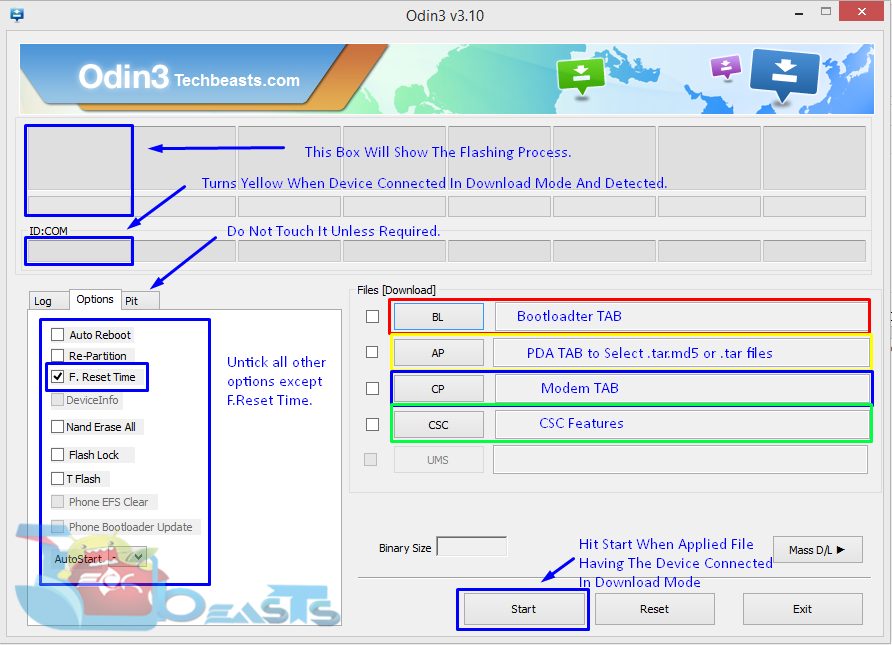
- As soon as Odin detects your phone, the ID:COM box should turn blue. Make sure that you’ve installed Samsung USB drivers before connecting.
- For Odin 3.09 or 3.10.6 hit the AP tab. Select the firmware.tar.md5 or firmware.tar, that you downloaded and extracted above.
- If you’re using Odin 3.07, you will select “PDA” tab instead of the AP tab, rest of the options remain untouched.
- Make sure that the options selected in your Odin are exactly as shown in the pic.
- Hit start and wait till the firmware flashing is complete, The flashing process box will turn green upon successful flashing.
- Once the flashing process has been completed successfully, disconnect your device and reboot it manually. You can pull out the battery, place it back and turn on.
- Once the device boots up, checkout the new firmware now.
- Your device will be running on official Android 5.0.1 Lollipop firmware.
- Once updated, do not try to downgrade, or else you will result in messing up EFS partition of your device.
- That’s all!


COMMENTS